Mastering Vase Mode: How to Print Beautiful, Seamless 3D Models Efficiently
If you want to print beautiful 3D models with smooth, seamless surfaces and minimal post-processing,
then "Vase Mode" is your secret weapon. This special 3D printing mode, often referred to as "spiralized
outer contour printing," allows you to print hollow objects with a continuous spiral pattern, eliminating
the need for support structures, layer lines, or seam marks. This revolutionary setting opens up endless
possibilities, allowing you to transform your 3D models into elegant and sophisticated vase-like structures.
What is Vase Mode in 3D Printing?
Vase Mode is a setting available in many 3D slicer software programs that allows for the printing of objects
with a continuous, single outer layer. Instead of printing individual layers, the printer uses a single perimeter
that spirals from the bottom to the top. This mode is ideal for printing vases, lamps, planters, or other
decorative models where strength isn't a primary concern, but aesthetics are.
One of the main advantages of printing in vase mode is that no support structures are needed. Because
the printer builds the object from a single outer contour, no internal infill is required. This not only saves
on material costs but also reduces the time needed to print the model.
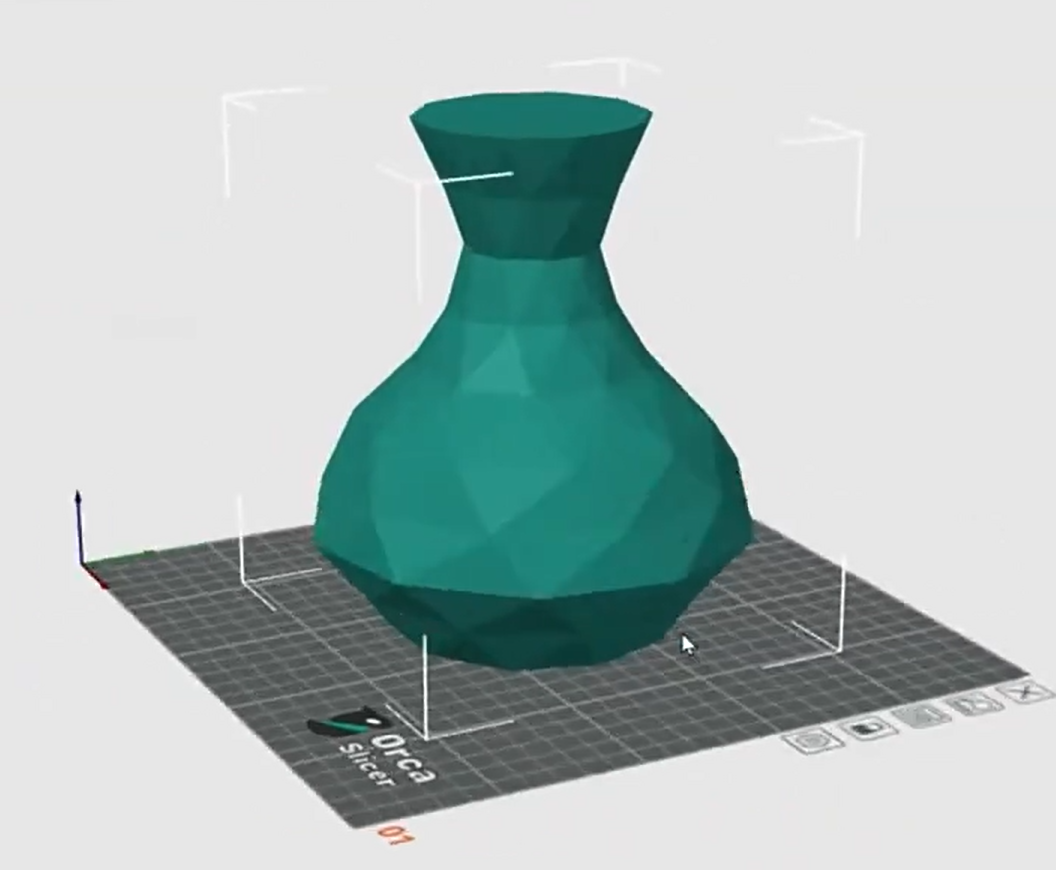
Advantages of Vase Mode Printing:
1. Seamless Surface
Because the printer continuously lays down layers when printing the outer shell, without interruptions
between layers, a smooth and continuous surface is achieved. This feature is especially important for
decorative objects, as visible lines or seams are undesirable in such items.
2. Faster Printing Speed
Because it requires no infill or support structures, vase mode reduces material usage and speeds up printing,
making it an effective option for large prints primarily used for decoration.
3. Cost-Effective
Printing with a single outer layer means less filament is used, making it more cost-effective. You can create
large models using much less filament than traditional printing methods.
4. Minimizing Post-Processing
Because vase mode printing produces a very smooth surface, it reduces post-processing steps such as sanding
or filling. This makes the entire process simpler and more time-saving.
Key Challenges of Printing in Vase Mode
While Vase Mode has a lot of advantages, there are still a few challenges you need to be aware of:
1. Stability and Strength
As Vase Mode prints a hollow object, the lack of infill means that these models are typically less durable.
This may be acceptable for decorative items, but it’s important to remember that Vase Mode isn't suitable
for functional parts that need structural integrity.
2. Material Choice
The type of printing filament material you use can greatly affect the quality and appearance of your print.
Some materials are more prone to warping or curling, especially in thin-walled prints. It's essential to select
a material that adheres well to the build surface and can withstand the continuous, uninterrupted printing
process in Vase Mode.
3. Printer Settings
For optimal results, your 3D printer needs proper calibration. Ensure the extrusion settings are accurate, the
print bed is level, and the nozzle is clean. Fine-tuning these settings is crucial for achieving flawless prints.
How to Set Up Vase Mode: A Step-by-Step Guide
Here's a simple guide to setting up vase mode in your slicing software:
1. Select Your Model
First, choosing a model that is suitable for the vase mode. Typically, these models are hollow and have only
a single outer wall.
2. Open Your Slicing Software
Whether you're using Cura, Dowell3D, or another slicing software, open your model in your chosen slicing program.
3. Enable Vase Mode
In your slicing software's print settings, find the vase mode (or spiral outer contour) option. This will automatically
adjust the print settings to create a spiral outer layer.
4. Adjust Print Settings
Set the layer height, speed, and extrusion width according to the model's dimensions. For best results, use a smaller
layer height for a smoother surface. Since there is no infill, consider increasing the number of outer wall layers to
ensure the wall thickness meets your requirements.
5. Choose the Right Filament
The choice of filament is crucial for achieving a beautiful, smooth, and seamless print. DOWELL3D filaments offer
high-quality PLA, PETG, and ABS materials, ideal for vase mode printing. Ensure the filament you use has good
adhesion to prevent warping.
6. Start Printing
Once the settings are configured, you can start printing! Watch as the printer begins continuous spiral printing,
creating a flawless outer surface without any layer lines or seams.
Mastering the vase mode is crucial for anyone who wants to print smooth, beautiful, and efficient 3D models. By
understanding the advantages and challenges of vase mode and how to choose the right filament, you can create
stunning models with minimal effort and time. DOWELL3D, a large 3D printer manufacturer with over 11 years of
production and export experience, offers a range of high-quality options to help you achieve perfect prints every
time. Choose us without hesitation; it will be the best decision you make.
If you want to know more about the DOWELL 3D printer, please contact us or leave a message, and we will provide you with detailed information.